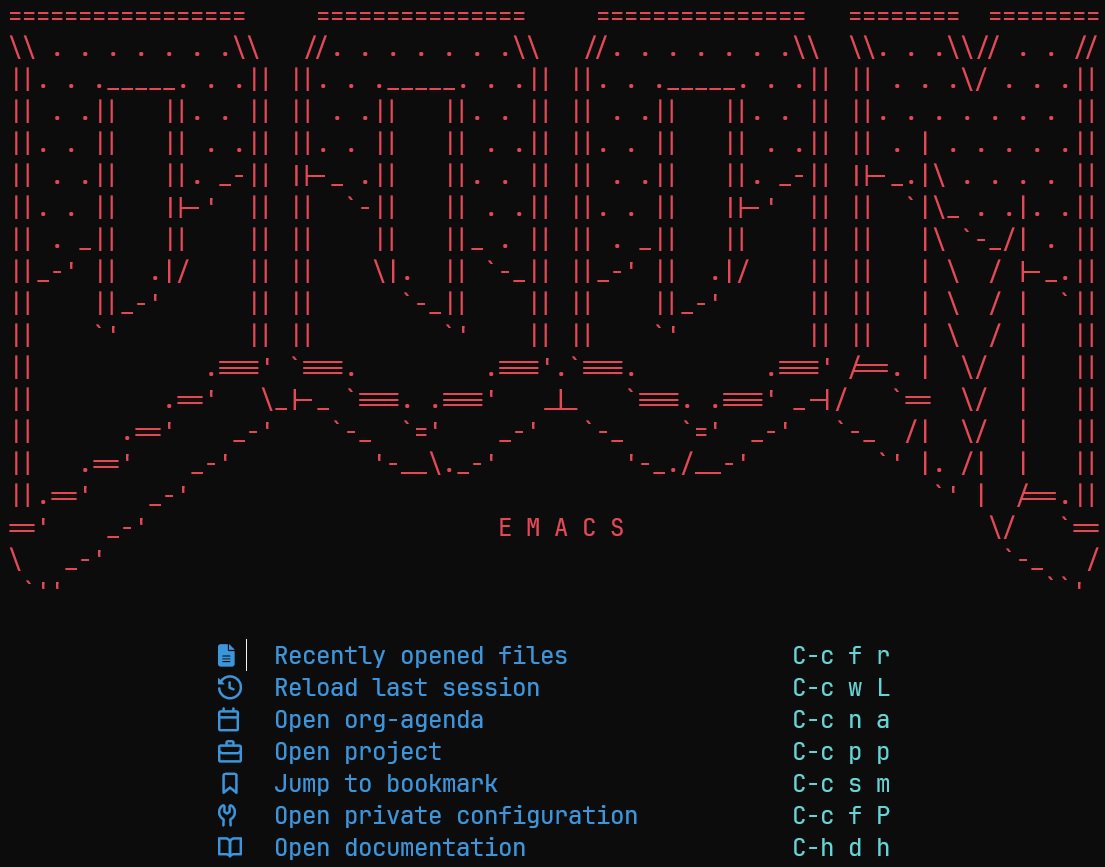
When running Doom Emacs under Mingw64 inside Windows Terminal, you may find the UI symbols (like those from Nerd Font) showing up as random blocks or question marks.
This issue is almost always caused by Windows console encoding not using UTF-8, even though your Emacs and fonts are already configured correctly.
This article explains why it happens and how to fix it completely — including installing Nerd Fonts via Scoop, adjusting Windows Terminal profiles, and ensuring UTF-8 consistency across all layers.
1. Root Cause
On Windows, every console session has a code page.
If it’s not set to UTF-8 (code page 65001), the shell misinterprets UTF-8 bytes as ANSI text before passing them to the terminal renderer.
So even with the correct font, you’ll still see garbled icons.
Doom Emacs and Nerd Fonts use Unicode glyphs in UTF-8.
We simply need to ensure the console also interprets everything as UTF-8.
2. Install a Nerd Font via Scoop
Open PowerShell and make sure Scoop is installed:
iwr -useb get.scoop.sh | iexAdd the nerd-fonts bucket:
scoop bucket add nerd-fontsInstall one of the Nerd Fonts you like, for example JetBrainsMono Nerd Font:
scoop install JetBrainsMono-NFOnce installed, the font appears in your Windows system fonts and can be selected in Windows Terminal.
3. Configure Windows Terminal Profile for Mingw64
Open Windows Terminal → Settings → Profiles → Mingw64 (or MSYS2 if you named it differently).
Update the Command line to explicitly set UTF-8 before starting Bash:
"commandline": "C:\\Windows\\System32\\cmd.exe /c chcp 65001 >NUL & C:\\msys64\\usr\\bin\\bash.exe -li"
Explanation:
cmd /c chcp 65001 >NULsets the active console code page to UTF-8 quietly.bash.exe -lilaunches your usual interactive shell.&chains the commands so the shell inherits UTF-8 from the console layer.
This approach is cleaner than putting chcp.com 65001 inside .bashrc, since it affects only terminal sessions and leaves non-interactive shells untouched.
4. Set the Font in Windows Terminal
Under the same profile:
Go to Appearance → Font face
Choose your installed font, e.g.:
JetBrainsMono Nerd FontSave settings and restart the terminal.
If you use other profiles (PowerShell, WSL, etc.), you can optionally apply the same font to keep icons consistent.
5. Verify Encoding
Inside your Mingw64 shell:
echo $LANG
It should show something like:
en_US.UTF-8
Then run:
chcp
Expected output:
Active code page: 65001
If both are correct, you now have a fully UTF-8 environment.
6. Launch Doom Emacs
Now simply run:
emacs -nw
or open GUI Emacs normally.
All those lovely Nerd Font icons (from mode line, dashboard, etc.) will render properly in Windows Terminal.
7. Optional: System-Wide UTF-8 Setting
If you want Windows to always default to UTF-8, enable this option:
Control Panel → Region → Administrative → Change system locale → Check “Use Unicode UTF-8 for worldwide language support.”
This ensures all console sessions start in UTF-8 by default.
However, beware: some legacy software may not handle UTF-8 well.
8. Summary
| Layer | What to Check | Correct Setting |
|---|---|---|
| Windows Code Page | chcp output | 65001 |
| Bash Locale | $LANG | en_US.UTF-8 |
| Terminal Font | Windows Terminal → Appearance | Nerd Font |
| Emacs | UTF-8 internal encoding | default |
Once these are aligned, Doom Emacs in Mingw64 becomes just as beautiful and functional as on Linux or macOS — with perfect icons and smooth input.
References
Enjoy your perfectly rendered Doom Emacs on Windows!