Introduction
A recent system crash forced me to wipe years of accumulated clutter—an overstuffed 1TB SSD, conflicting software, and tangled environment variables. I rebuilt the machine from scratch by preparing a Ventoy USB stick and installing Windows 10 Pro 22H2. This article captures the resulting development environment so I can reproduce it quickly or share the recipe with teammates.
The guide covers:
- Shell tooling with zsh/oh-my-zsh and PowerShell/oh-my-posh
- Doom Emacs across WSL Debian, VirtualBox Debian, and MSYS2/MinGW64
- A reproducible MicroPython build toolchain
- Shared V2RayN proxy settings plus Debian and pip mirror configuration
- Scoop and Pacman package manager tuning
- Consistent Windows Terminal profiles
Hardware Baseline
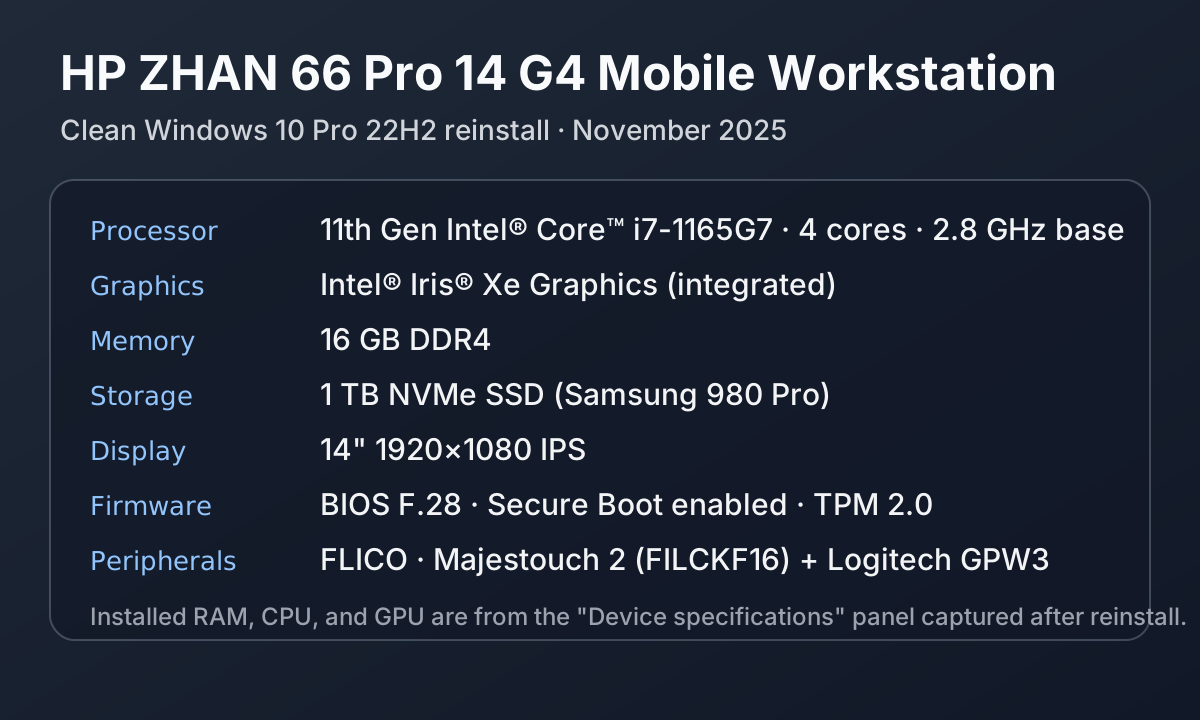
- Model: HP ZHAN 66 Pro 14 G4 mobile workstation
- CPU: 11th Gen Intel® Core™ i7-1165G7 @ 2.80 GHz
- GPU: Intel® Iris® Xe Graphics (shared memory)
- RAM: 16 GB DDR4 (dual channel)
- Storage: 1TB Samsung 980 Pro NVMe SSD
- OS: Windows 10 Pro 22H2, clean installation (November 2025)
- Input devices: FLICO · Majestouch 2 (FILCKF16) + Logitech GPW3
All instructions below are validated on this configuration. Comparable 11th-gen Intel laptops should deliver nearly identical results.
Networking and Mirrors
Sharing the Windows V2RayN Proxy
Locate the host IP from WSL:
cat /etc/resolv.conf | grep nameserverThis typically reveals
192.168.x.xfor VirtualBox bridged networking or172.30.x.xfor WSL.Set proxy variables:
export http_proxy=socks://<windows-ip>:10808
export https_proxy=socks://<windows-ip>:10808
export all_proxy=socks://<windows-ip>:10808
Persist the variables: append the three lines above to
~/.zshrc(or~/.bashrc) in both WSL Debian and VirtualBox Debian. VirtualBox should use a Bridged Adapter so the guest reaches the Windows host.Configure apt: create
/etc/apt/apt.conf.d/proxy.confwithAcquire::http::Proxy "socks://<windows-ip>:10808"; Acquire::https::Proxy "socks://<windows-ip>:10808";
Debian mirror (Tsinghua University)
Update /etc/apt/sources.list in both Debian environments:
deb https://mirrors.tuna.tsinghua.edu.cn/debian/ bookworm main contrib non-free non-free-firmware
deb https://mirrors.tuna.tsinghua.edu.cn/debian/ bookworm-updates main contrib non-free non-free-firmware
deb https://mirrors.tuna.tsinghua.edu.cn/debian/ bookworm-backports main contrib non-free non-free-firmware
deb https://mirrors.tuna.tsinghua.edu.cn/debian-security bookworm-security main contrib non-free non-free-firmware
Then refresh:
sudo apt update
Python pip mirror (Tsinghua University)
Create ~/.pip/pip.conf on Debian and %APPDATA%\pip\pip.ini on Windows:
[global]
index-url = https://pypi.tuna.tsinghua.edu.cn/simple
timeout = 6000
Shell Tooling
zsh + oh-my-zsh
Install and standardize zsh across WSL Debian and MSYS2 so aliases and prompts behave the same everywhere.
WSL or VirtualBox Debian:
sudo apt install zsh git curl -y
chsh -s $(which zsh)
Install oh-my-zsh:
sh -c "$(curl -fsSL https://raw.githubusercontent.com/ohmyzsh/ohmyzsh/master/tools/install.sh)"
Configure ~/.zshrc (ideally checked into dotfiles):
plugins=(git z sudo extract zsh-autosuggestions zsh-syntax-highlighting)
ZSH_THEME="powerlevel10k/powerlevel10k"
source $ZSH/oh-my-zsh.sh
Clone Powerlevel10k once and let p10k configure tailor the prompt per environment:
git clone --depth=1 https://github.com/romkatv/powerlevel10k.git ${ZSH_CUSTOM:-$HOME/.oh-my-zsh/custom}/themes/powerlevel10k
MSYS2 MinGW64:
pacman -S zsh git
Make zsh the default shell by editing C:\msys64\msys2_shell.cmd:
set "MSYS2_PATH_TYPE=inherit"
set "MSYSTEM=MINGW64"
set "SHELL=/usr/bin/zsh"
Symlink shared dotfiles from Windows storage (example):
ln -s /mnt/c/Users/<USERNAME>/dotfiles/.zshrc ~/.zshrc
ln -s /mnt/c/Users/<USERNAME>/dotfiles/.p10k.zsh ~/.p10k.zsh
PowerShell + oh-my-posh
Install PowerShell 7 and enhance it with oh-my-posh and PSReadLine:
winget install --id Microsoft.PowerShell
winget install JanDeDobbeleer.OhMyPosh
Install-Module -Name PSReadLine -Scope CurrentUser -Force
Bootstrap your $PROFILE (create it if missing):
if (!(Test-Path -Path $PROFILE)) { New-Item -ItemType File -Force -Path $PROFILE | Out-Null }
@'
Import-Module PSReadLine
Set-PSReadLineOption -PredictionSource HistoryAndPlugin
Set-PSReadLineOption -PredictionViewStyle ListView
oh-my-posh init pwsh --config "$env:POSH_THEMES_PATH\paradox.omp.json" | Invoke-Expression
'@ | Set-Content -Path $PROFILE -Encoding UTF8
Install JetBrainsMono Nerd Font (from https://www.nerdfonts.com/font-downloads) and set it in Windows Terminal so glyphs render correctly in both shells.
Doom Emacs Across Platforms
Shared installation steps
git clone --depth 1 https://github.com/doomemacs/doomemacs ~/.emacs.d
~/.emacs.d/bin/doom install
Symlink your Doom configuration repository:
git clone [email protected]:yourname/dotfiles.git ~/dotfiles
ln -s ~/dotfiles/doom ~/.doom.d
Example font configuration inside config.el:
(cond
 ((eq system-type 'windows-nt)
  (setq doom-font (font-spec :family "JetBrainsMono Nerd Font" :size 12)))
 ((eq system-type 'gnu/linux)
  (setq doom-font (font-spec :family "monospace" :size 14))))
WSL Debian
sudo apt install build-essential ripgrep fd-find imagemagick -y
fc-cache -fv
ln -s /mnt/c/Windows/Fonts/"JetBrainsMonoNLNerdFont-Regular.ttf" ~/.local/share/fonts/
VirtualBox Debian
- Use Bridged Adapter networking for proxy access.
- Install the same dependencies as WSL.
- Copy Nerd Fonts into
/usr/local/share/fonts(or mount a shared folder) and runsudo fc-cache -fv.
MSYS2 MinGW64 (inside Windows Terminal)
pacman -S --needed git mingw-w64-x86_64-emacs ripgrep fd tree-sitter
Apply these tweaks so Emacs behaves nicely under Windows Terminal:
- Fonts: ensure
doom-fontuses “JetBrainsMono Nerd Font” and set the same face in the Windows Terminal profile. - Cursor shape: add
(setq-default cursor-type 'bar)to keep the caret thin instead of a block. - Eshell aliases: populate
~/.emacs.d/eshell/aliaswith quick shortcuts:ll ls -l g git status v nvim $1 e emacs $1 - Highlighting and UI polish:
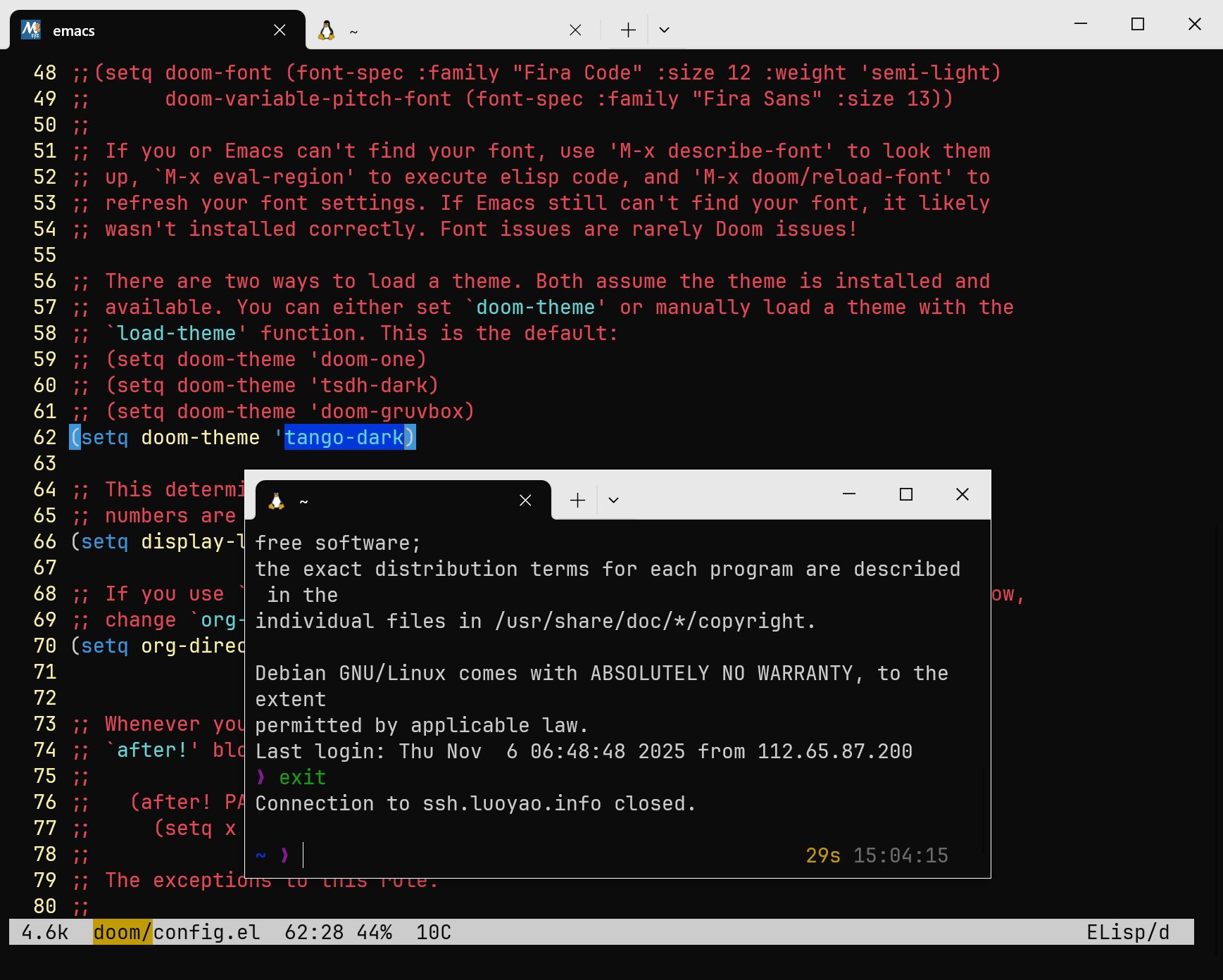
(setq doom-theme 'tango-dark)
(global-font-lock-mode 1)
(global-hl-line-mode 1)
(setq doom-themes-enable-bold t
      doom-themes-enable-italic t)
(add-hook 'eshell-first-time-mode-hook #'doom-themes-visual-bell-config)
MicroPython Build Toolchain
Prerequisites (WSL and VirtualBox Debian)
sudo apt install git build-essential ninja-build cmake python3 python3-pip python3-venv pkg-config -y
python3 -m pip install --user pyserial esptool
sudo apt install gcc-arm-none-eabi binutils-arm-none-eabi
Prerequisites (MSYS2 MinGW64)
pacman -S --needed git base-devel mingw-w64-x86_64-gcc mingw-w64-x86_64-cmake mingw-w64-x86_64-python
pip install --upgrade pyserial esptool
Add MAKEFLAGS="-j$(nproc)" to ~/.zshrc for parallel builds on Windows.
Clone and build
git clone https://github.com/micropython/micropython.git ~/Dev/micropython
cd ~/Dev/micropython
make -C mpy-cross
make -C ports/stm32 BOARD=PYBD_SF2
For ESP32 targets:
make -C ports/esp32 submodules
make -C ports/esp32 BOARD=GENERIC_SPIRAM
Flashing helper
Create ~/bin/micropython-flash (remember to chmod +x):
#!/usr/bin/env bash
esptool.py --chip esp32 --port "$1" --baud 460800 write_flash -z 0x1000 build-GENERIC_SPIRAM/firmware.bin
Use udev rules on Linux or Device Manager on Windows to maintain consistent serial port naming.
Package Managers
Scoop (Windows)
Set-ExecutionPolicy RemoteSigned -Scope CurrentUser
iwr -useb get.scoop.sh | iex
scoop install git curl wget neovim
Point Scoop at the Tsinghua mirror and enable aria2 downloads:
scoop config SCOOP_REPO https://mirrors.tuna.tsinghua.edu.cn/git/scoopinstaller/scoop.git
scoop bucket add extras https://mirrors.tuna.tsinghua.edu.cn/git/scoop-bucket/extras.git
scoop config aria2-enabled true
scoop config aria2-warning-enabled false
scoop config proxy 172.30.0.1:10808
Pacman (MSYS2)
Edit /etc/pacman.d/mirrorlist.msys and /etc/pacman.d/mirrorlist.mingw64:
Server = https://mirrors.tuna.tsinghua.edu.cn/msys2/msys/$arch
Server = https://mirrors.tuna.tsinghua.edu.cn/msys2/mingw/x86_64
Update and stay current:
pacman -Syyu
pacman -Syu --disable-download-timeout
Windows Terminal Profiles
Install Windows Terminal via the Microsoft Store or Winget:
winget install --id Microsoft.WindowsTerminal -e
Append the following to settings.json (Ctrl+, → “Open JSON file”):
{
  "defaultProfile": "{58ad8b0c-3ef8-5f4d-bc6f-13e4c00f2530}",
  "profiles": {
    "list": [
      {
        "name": "Debian",
        "source": "Windows.Terminal.Wsl",
        "font": { "face": "JetBrainsMono Nerd Font", "size": 11 },
        "cursorShape": "bar",
        "colorScheme": "One Half Dark"
      },
      {
        "name": "MinGW64",
        "commandline": "C:/msys64/msys2_shell.cmd -mingw64 -shell zsh",
        "icon": "C:\\msys64\\mingw64.ico",
        "font": { "face": "JetBrainsMono Nerd Font", "size": 11 },
        "cursorShape": "bar",
        "colorScheme": "One Half Dark"
      },
      {
        "name": "PowerShell",
        "source": "Windows.Terminal.PowershellCore",
        "font": { "face": "JetBrainsMono Nerd Font", "size": 11 },
        "cursorShape": "bar",
        "colorScheme": "One Half Dark"
      }
    ]
  }
}
Use the profile Appearance tab or oh-my-posh font install to verify the Nerd Font is active; otherwise icons and prompt glyphs will appear garbled.
Conclusion
This rebuild delivers a portable workflow:
zsh+oh-my-zshfor consistent shell ergonomicsPowerShell+oh-my-poshfor modern Windows scriptingDoom Emacsas the cross-platform editor- Shared V2RayN proxy and Tsinghua mirrors for predictable networking
ScoopandPacmanfor fast package management- Curated Windows Terminal profiles as the single launchpad
With everything documented, spinning up a fresh Windows or Linux guest now takes minutes instead of days.
Reference links